Version Control (aka Revision Control aka Source Control) lets you track your files over time. Why do you care? So when you mess up you can easily get back to a previous working version.
You’ve probably cooked up your own version control system without realizing it had such a geeky name. Got any files like this? (Not these exact ones I hope).
- KalidAzadResumeOct2006.doc
- KalidAzadResumeMar2007.doc
- instacalc-logo3.png
- instacalc-logo4.png
- logo-old.png
It’s why we use “Save As”. You want the new file without obliterating the old one. It’s a common problem, and solutions are usually like this:
- Make a single backup copy (Document.old.txt).
- If we’re clever, we add a version number or date: Document_V1.txt, DocumentMarch2007.txt
- We may even use a shared folder so other people can see and edit files without sending them over email. Hopefully they relabel the file after they save it.
So Why Do We Need A Version Control System (VCS)?
Our shared folder/naming system is fine for class projects or one-time papers. But software projects? Not a chance.
Do you think the Windows source code sits in a shared folder like “Windows2007-Latest-UPDATED!!”, for anyone to edit? That every programmer just works in a different subfolder? No way.
Large, fast-changing projects with many authors need a Version Control System (geekspeak for “file database”) to track changes and avoid general chaos. A good VCS does the following:
- Backup and Restore. Files are saved as they are edited, and you can jump to any moment in time. Need that file as it was on Feb 23, 2007? No problem.
- Synchronization. Lets people share files and stay up-to-date with the latest version.
- Short-term undo. Monkeying with a file and messed it up? (That’s just like you, isn’t it?). Throw away your changes and go back to the “last known good” version in the database.
- Long-term undo. Sometimes we mess up bad. Suppose you made a change a year ago, and it had a bug. Jump back to the old version, and see what change was made that day.
- Track Changes. As files are updated, you can leave messages explaining why the change happened (stored in the VCS, not the file). This makes it easy to see how a file is evolving over time, and why.
- Track Ownership. A VCS tags every change with the name of the person who made it. Helpful for
blamestorming giving credit. - Sandboxing, or insurance against yourself. Making a big change? You can make temporary changes in an isolated area, test and work out the kinks before “checking in” your changes.
- Branching and merging. A larger sandbox. You can branch a copy of your code into a separate area and modify it in isolation (tracking changes separately). Later, you can merge your work back into the common area.
Shared folders are quick and simple, but can’t beat these features.
Learn the Lingo
Most version control systems involve the following concepts, though the labels may be different.
Basic Setup
- Repository (repo): The database storing the files.
- Server: The computer storing the repo.
- Client: The computer connecting to the repo.
- Working Set/Working Copy: Your local directory of files, where you make changes.
- Trunk/Main: The “primary” location for code in the repo. Think of code as a family tree — the “trunk” is the main line.
Basic Actions
- Add: Put a file into the repo for the first time, i.e. begin tracking it with Version Control.
- Revision: What version a file is on (v1, v2, v3, etc.).
- Head: The latest revision in the repo.
- Check out: Download a file from the repo.
- Check in: Upload a file to the repository (if it has changed). The file gets a new revision number, and people can “check out” the latest one.
- Checkin Message: A short message describing what was changed.
- Changelog/History: A list of changes made to a file since it was created.
- Update/Sync: Synchronize your files with the latest from the repository. This lets you grab the latest revisions of all files.
- Revert: Throw away your local changes and reload the latest version from the repository.
Advanced Actions
- Branch: Create a separate copy of a file/folder for private use (bug fixing, testing, etc). Branch is both a verb (”branch the code”) and a noun (”Which branch is it in?”).
- Diff/Change/Delta: Finding the differences between two files. Useful for seeing what changed between revisions.
- Merge (or patch): Apply the changes from one file to another, to bring it up-to-date. For example, you can merge features from one branch into another. (At Microsoft this was called Reverse Integrate and Forward Integrate)
- Conflict: When pending changes to a file contradict each other (both changes cannot be applied).
- Resolve: Fixing the changes that contradict each other and checking in the correct version.
- Locking: “Taking control” of a file so nobody else can edit it until you unlock it. Some version control systems use this to avoid conflicts.
- Breaking the lock: Forcibly unlocking a file so you can edit it. It may be needed if someone locks a file and goes on vacation (or “calls in sick” the day Halo 3 comes out).
- Check out for edit: Checking out an “editable” version of a file. Some VCSes have editable files by default, others require an explicit command.
And a typical scenario goes like this:
Alice adds a file (list.txt) to the repository. She checks it out, makes a change (puts “milk” on the list), and checks it back in with a checkin message (”Added required item.”). The next morning, Bob updates his local working set and sees the latest revision of list.txt, which contains “milk”. He can browse the changelog or diff to see that Alice put “milk” the day before.
Visual Examples
This guide is purposefully high-level: most tutorials throw a bunch of text commands at you. I prefer to cover the high-level concepts without getting stuck in the syntax (the manual is always there, don’t worry). Sometimes it’s nice to see what’s possible.
Checkins
The simplest scenario is checking in a file (list.txt) and modifying it over time.
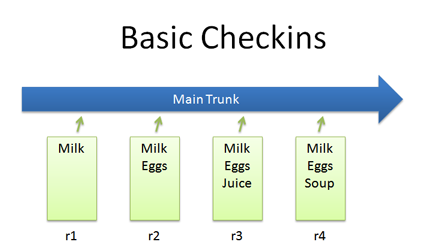
Each time we check in a new version, we get a new revision (r1, r2, r3, etc.).
svn add list.txt
(modify the file)
svn ci list.txt -m "Changed the list"
The -m flag is the message to use for this checkin.
Checkouts and Editing
In reality, you might not keep checking in a file. You may have to check out, edit and check in. The cycle looks like this:
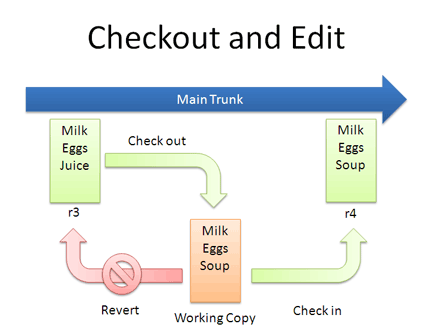
If you don’t like your changes and want to start over, you can revert to the previous version and start again (or stop). When checking out, you get the latest revision by default. If you want, you can specify a particular revision. In Subversion, run:
svn co list.txt (get latest version)
...edit file...
svn revert list.txt (throw away changes)

svn co -r2 list.txt (check out particular version)
Diffs
The trunk has a history of changes as a file evolves. Diffs are the changes you made while editing: imagine you can “peel” them off and apply them to a file:
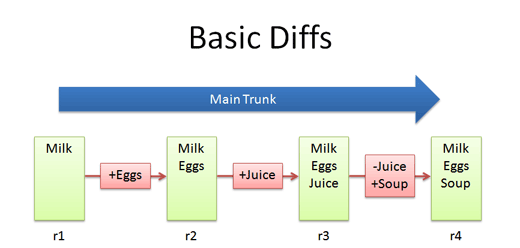
For example, to go from r1 to r2, we add eggs (+Eggs). Imagine peeling off that red sticker and placing it on r1, to get r2.
And to get from r2 to r3, we add Juice (+Juice). To get from r3 to r4, we remove Juice and add Soup (-Juice, +Soup).
Most version control systems store diffs rather than full copies of the file. This saves disk space: 4 revisions of a file doesn’t mean we have 4 copies; we have 1 copy and 4 small diffs. Pretty nifty, eh? In SVN, we diff two revisions of a file like this:
svn diff -r3:4 list.txt
Diffs help us notice changes (”How did you fix that bug again?”) and even apply them from one branch to another.
Bonus question: what’s the diff from r1 to r4?
+Eggs
+Soup
Notice how “Juice” wasn’t even involved — the direct jump from r1 to r4 doesn’t need that change, since Juice was overridden by Soup.
Branching
Branches let us copy code into a separate folder so we can monkey with it separately:
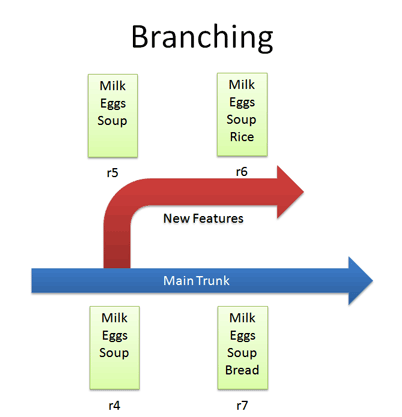
For example, we can create a branch for new, experimental ideas for our list: crazy things like Rice or Eggo waffles. Depending on the version control system, creating a branch (copy) may change the revision number.
Now that we have a branch, we can change our code and work out the kinks. (“Hrm… waffles? I don’t know what the boss will think. Rice is a safe bet.”). Since we’re in a separate branch, we can make changes and test in isolation, knowing our changes won’t hurt anyone. And our branch history is under version control.
In Subversion, you create a branch simply by copying a directory to another.
svn copy http://path/to/trunk http://path/to/branch
So branching isn’t too tough of a concept: Pretend you copied your code into a different directory. You’ve probably branched your code in school projects, making sure you have a “fail safe” version you can return to if things blow up.
Merging
Branching sounds simple, right? Well, it’s not — figuring out how to merge changes from one branch to another can be tricky.
Let’s say we want to get the “Rice” feature from our experimental branch into the mainline. How would we do this? Diff r6 and r7 and apply that to the main line?
Wrongo. We only want to apply the changes that happened in the branch!. That means we diff r5 and r6, and apply that to the main trunk:
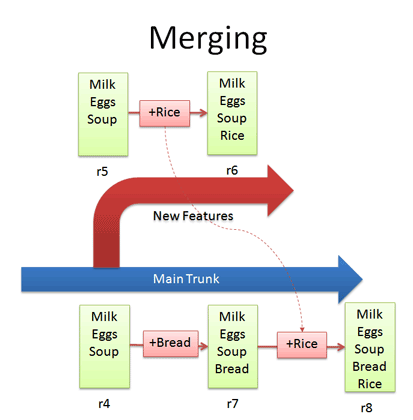
If we diffed r6 and r7, we would lose the “Bread” feature that was in main. This is a subtle point — imagine “peeling off” the changes from the experimental branch (+Rice) and adding that to main. Main may have had other changes, which is ok — we just want to insert the Rice feature.
In Subversion, merging is very close to diffing. Inside the main trunk, run the command:
svn merge -r5:6 http://path/to/branch
This command diffs r5-r6 in the experimental branch and applies it to the current location. Unfortunately, Subversion doesn’t have an easy way to keep track of what merges have been applied, so if you’re not careful you may apply the same changes twice. It’s a planned feature, but the current advice is to keep a changelog message reminding you that you’ve already merged r5-r6 into main.
Conflicts
Many times, the VCS can automatically merge changes to different parts of a file. Conflicts can arise when changes appear that don’t gel: Joe wants to remove eggs and replace it with cheese (-eggs, +cheese), and Sue wants to replace eggs with a hot dog (-eggs, +hot dog).
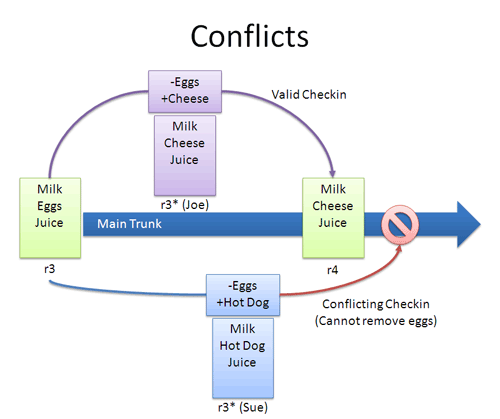
At this point it’s a race: if Joe checks in first, that’s the change that goes through (and Sue can’t make her change).
When changes overlap and contradict like this, the VCS may report a conflict and not let you check in — it’s up to you to check in a newer version that resolves this dilemma. A few approaches:
- Re-apply your changes. Sync to the the latest version (r4) and re-apply your changes to this file: Add hot dog to the list that already has cheese.
- Override their changes with yours. Check out the latest version (r4), copy over your version, and check your version in. In effect, this removes cheese and replaces it with hot dog.
Conflicts are infrequent but can be a pain. Usually I update to the latest and re-apply my changes.
Tagging
Who would have thought a version control system would be Web 2.0 compliant? Many systems let you tag (label) any revision for easy reference. This way you can refer to “Release 1.0″ instead of a particular build number:
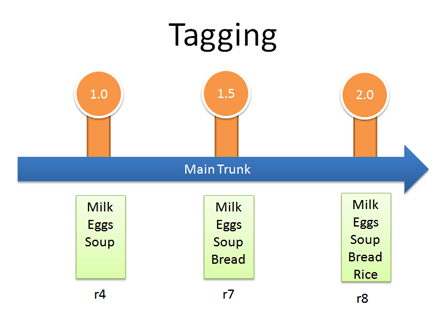
In Subversion, tags are just branches that you agree not to edit; they are around for posterity, so you can see exactly what your version 1.0 release contained. Hence they end in a stub — there’s nowhere to go.
(in trunk)
svn copy http://path/to/revision http://path/to/tag
Real-life example: Managing Windows Source Code
We guessed that Windows was managed out of a shared folder, but it’s not the case. So how’s it done?
- There’s a main line with stable builds of Windows.
- Each group (Networking, User Interface, Media Player, etc.) has its own branch to develop new features. These are under development and less stable than main.
You develop new features in your branch and “Reverse Integrate (RI)” to get them into Main. Later, you “Forward Integrate” and to get the latest changes from Main into your branch:
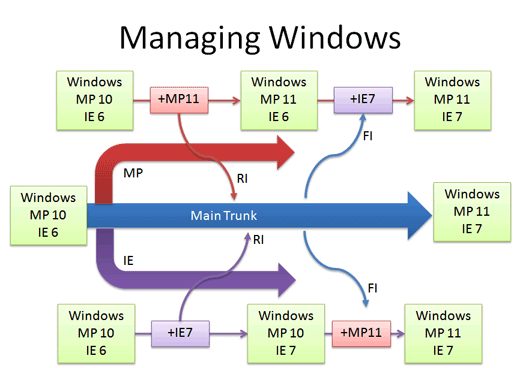
Let’s say we’re at Media Player 10 and IE 6. The Media Player team makes version 11 in their own branch. When it’s ready and tested, there’s a patch from 10 - 11 which is applied to Main (just like the “Rice” example, but a tad more complicated). This a reverse integration, from the branch to the trunk. The IE team can do the same thing.
Later, the Media Player team can pick up the latest code from other teams, like IE. In this case, Media Player forward integrates and gets the latest patches from main into their branch. This is like pulling in the “Bread” feature into the experimental branch, but again, more complicated.
So it’s RI and FI. Aye aye. This arrangement lets changes percolate throughout the branches, while keeping new code out of the main line. Cool, eh?
In reality, there’s many layers of branches and sub-branches, along with quality metrics that determine when you get to RI. But you get the idea: branches help manage complexity. Now you know the basics of how one of the largest software projects is organized.
Key Takeaways
My goal was to share high-level thoughts about version control systems. Here are the basics:
- Use version control. Seriously, it’s a good thing, even if you’re not writing an OS. It’s worth it for backups alone.
- Take it slow. I’m only now looking into branching and merging for my projects. Just get a handle on using version control and go from there. If you’re a small project, branching/merging may not be an issue. Large projects often have experienced maintainers who keep track of the branches and patches.
- Keep Learning. There’s plenty of guides for SVN, CVS, RCS, Git, Perforce or whatever system you’re using. The important thing is to know the concepts and realize every system has its own lingo and philosophy. Eric Sink has a detailed version control guide also.
These are the basics — as time goes on I’ll share specific lessons I’ve learned from my projects. Now that you’ve figured out a regular VCS, try an illustrated guide to distributed version control.


